That shoebox has been in the closet for twenty years. You know precisely which one. Inside it: a folded newspaper clipping from the night your team won districts, a stack of team photos where half the faces have already faded to ghosts, a Polaroid from the dugout after the last game of your senior season. And somewhere under all of it, a laminated certificate with your name on it in that particular shade of gold ink that only existed in 1994.
If you've been thinking about how to digitize old sports photos and clippings before the paper finishes crumbling, this guide is the specific starting point you need. Not a generic "scan at 300 DPI and call it a day" tutorial. A material-by-material breakdown covering the actual things a former high school athlete has in that box — yellowed newsprint, degraded Polaroids, laminated awards, and team photos printed on paper stock that hasn't aged gracefully.
Each material type behaves differently under a scanner. Each one needs a different resolution, a different color profile, and a different handling approach. Getting this wrong means a digital file that looks worse than the original. Getting it right means those memories survive another fifty years.
Here's how to do it right.
Why Generic Scanning Guides Fail Former Athletes
Every top-ranking guide for "scanning old photos" was written for standard photographic prints — the 4×6 glossy prints that came out of a one-hour photo lab between 1980 and 2005. That's a reasonable assumption for most consumers.
Former athletes don't have most-consumer collections.
A typical shoebox from a former high school athlete contains at least four distinct material types, each with its own degradation pattern and scanning requirement:
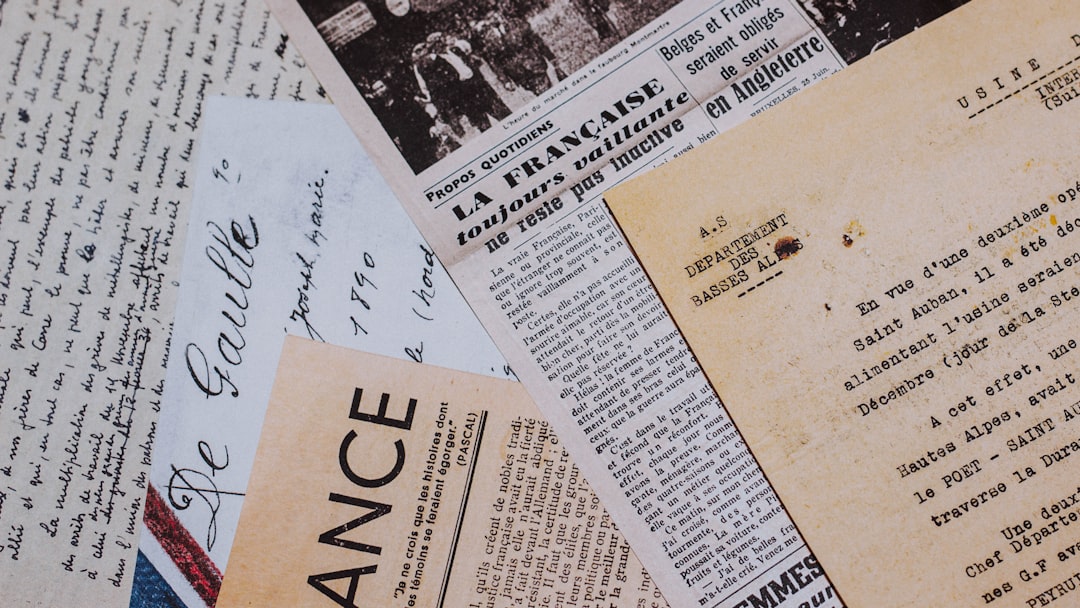
- Newspaper clippings — printed on acidic newsprint that yellows, becomes brittle, and develops foxing (rust-colored spots from iron oxidation in the paper). The ink is not photographic — it's typographic, and it behaves entirely differently under a scanner's light source.
- Polaroid photographs — developed through a chemical process that produces images with a narrower tonal range than conventional prints. Older Polaroids (pre-1990) develop a characteristic yellow cast and surface cracking that requires specific color correction during scanning.
- Standard photographic team photos — often printed on lower-quality paper stock than professional studio prints, with ink and dye that shift toward magenta or cyan as they age.
- Laminated certificates, awards, and programs — the lamination itself creates scanning challenges: surface glare, Newton rings (the circular interference patterns that appear between smooth surfaces and scanner glass), and plastic that has yellowed or fogged over time.
No single scanning setting handles all four. The guide that tells you to scan everything at 300 DPI is giving you advice that will produce mediocre results across the board.
What You Need Before You Start
Before touching anything in that box, gather these specific items. Each one prevents a specific failure mode.
For handling: - White cotton gloves (not nitrile — cotton prevents oils from your skin transferring to photographic surfaces, which accelerates degradation) - A clean, lint-free cloth for scanner glass - A soft artist's brush (1-inch natural bristle) for removing loose dust from clippings before scanning
For scanning: - A flatbed scanner — not a document feeder. Document feeders pull materials through rollers, which can tear brittle newsprint and scratch photographic surfaces. For this specific job, only a flatbed scanner with a lid you can control manually will produce acceptable results. The Epson Perfection V39 and V600 are the two most commonly recommended consumer options for archival work; in our experience, the V600's higher optical resolution ceiling becomes relevant specifically when you're working with small newspaper text. - Scanning software that allows manual resolution and color profile control. The scanner's default "auto" settings will make compression and color decisions you don't want made for you. - If you're facing a large collection — multiple shoeboxes rather than just one — or items too fragile to handle safely, professional digitization services such as ScanMyPhotos, Legacybox, or Capture are worth considering. These services process bulk orders by mail: you ship them your materials, they scan everything and return both the originals and digital files. The cost is higher than DIY scanning, but for collections in the hundreds of items, or for newsprint that crumbles at a touch, the time savings and handling risk reduction justify the expense.
For storage: - Archival-quality folders or acid-free sleeves for physical materials after scanning - An external hard drive AND a cloud backup service — the preservation logic here is simple: external drives fail. Cloud-only is vulnerable to subscription lapses. Both together is the standard.
You don't need to purchase new software. Both Windows Scan and Image Capture (Mac) allow manual DPI control. If you want post-processing capability, GIMP is free, handles 16-bit color files, and has sufficient tools for the color correction this work requires.
Material-by-Material Scanning Settings
This is the section that no generic guide provides. Each material type below has a specific recommended resolution, color mode, and handling note based on what that material actually is and how it degrades.
Newspaper Clippings: The Most Fragile Material in the Box
Newspaper clippings are the highest-priority items in any former athlete's collection — and the most likely to be already in the process of crumbling. Newsprint paper is manufactured with high lignin content, which oxidizes over time, turning the paper yellow and eventually brown. A clipping from 1988 is already significantly degraded. A clipping from 1978 may be actively shedding.
Scanning settings for newspaper clippings:
- Clean the scanner glass first. Newspaper ink smudges transfer to glass and appear as artifacts in every subsequent scan. Use a lint-free cloth — not paper towels, which leave microfibers.
- Brush the clipping gently before placing it. Loose dust and paper particles on a brittle clipping will show up in the scan and cannot always be removed in post-processing.
- Resolution: 600 DPI minimum. The argument for 600 rather than 300 is the text — action photos in a 1989 small-town newspaper were printed at low resolution to begin with, and scanning at 300 DPI produces a digital file that is barely better than a smartphone photo. At 600 DPI, you capture enough detail that the file can be printed or cropped later without becoming illegible.
- Color mode: 24-bit color, not grayscale. Even though newsprint reads as "black and white," the yellowing and foxing are color information. Scanning in grayscale discards that information and produces a flat, artificial result. Scan in color; convert to grayscale later in post if you want a clean version, while keeping the color original.
- Scan with the lid slightly raised if the clipping is folded or fragile. A raised lid allows you to place the clipping without unfolding it under pressure. You'll get a slightly uneven background, but the alternative — forcing a brittle fold flat under the scanner lid — risks tearing.
After scanning, store the original clipping in an acid-free sleeve. Do not attempt to unfold severely brittle clippings — the scan is now the preservation, and the physical original should be disturbed as little as possible.
Old Photographs: Team Photos, Prints, and Action Shots
Standard photographic prints from high school sports — the 8×10 team photo, the action shots from the yearbook photographer, the wallet-sized copies your parents ordered — are more durable than newsprint but have their own degradation patterns.
Dye-based photographic prints from the 1970s through the 1990s shift color as they age. Kodacolor prints (the most common consumer format through that period) typically shift toward yellow-green. Fujicolor prints shift toward cyan. If your team photo looks nothing like the colors you remember, that's why — and a scanner with decent color correction software can partially reverse it.
Scanning settings for photographic prints:
- Resolution: 600 DPI for standard prints. For small prints (wallet-size, 3×5), use 1200 DPI. The rule is that your final digital file should have at least 3000 pixels on the long edge for a print that can be displayed or reprinted. A wallet-size photo at 600 DPI produces roughly 1500 pixels — not enough.
- Color mode: 48-bit color (also called 16-bit per channel). Most scanners default to 24-bit. The 48-bit setting captures twice the color information and gives you significantly more latitude to correct fading and color shifts in post-processing without introducing banding artifacts.
- Do not use the scanner's built-in "restoration" or "enhancement" features for your master scan. Scan raw first, at the highest quality settings. Create a corrected copy afterward. Your archive copy should always be the unprocessed original.
Polaroids: The Ones That Need the Most Care
Maddie R., 38, played varsity softball for four years and has a Ziploc bag of Polaroids from her team's state tournament run — including one of the team pile-on at home plate that she's never been able to share digitally because every smartphone photo of it looks like a photo of a photo. After scanning the Polaroids flat at 600 DPI in 48-bit color and spending twenty minutes with basic levels adjustment in GIMP, she had a shareable file for the first time in twenty years. The pile-on photo is now her cover photo.
Polaroids are among the most rewarding materials to scan because the results often dramatically exceed what the physical print currently looks like — but they require specific handling.
The primary challenge with Polaroids: The surface is soft and scratches easily. The image area sits inside a plastic border that is slightly thicker than the image surface, which means the image itself does not lie perfectly flat on the scanner glass.
Scanning approach for Polaroids:
- Handle only by the white border. Never touch the image surface, even with gloves. The emulsion layer on older Polaroids is soft enough to pick up fingerprints through the glove.
- Place face-down on clean scanner glass. The slight unevenness from the plastic border is unavoidable. Do not press down on the scanner lid to force it flat.
- Resolution: 800 DPI. Polaroid image area is small — a standard Polaroid 600 image measures approximately 3.1 × 3.1 inches. At 800 DPI, you produce a roughly 2480 × 2480 pixel file, which is sufficient for a quality 8×10 print.
- Color mode: 48-bit color.
- Expect to spend time on color correction. Older Polaroids (pre-1990 especially) have a pronounced yellow cast. In GIMP, use Colors → Curves, pull the blue channel up slightly and the yellow channel down. This is iterative — work in small adjustments and compare to any color reference in the image (white borders, white uniforms) rather than trying to achieve a preset look.
Laminated Certificates and Awards
This is the material most guides don't address at all, and it's one of the more common items in a former athlete's collection — Most Valuable Player awards, academic-athletic recognition certificates, framed newspaper front pages that someone had laminated in the 1990s.
The problem with lamination under a scanner is glare. The smooth plastic surface reflects the scanner's light source back into the sensor, creating bright hot spots that obliterate the text and image underneath.
Two approaches that work:
- Scan with the lid fully open and a piece of black cloth or foam board placed on top of the laminated item. The black background absorbs light rather than reflecting it, which dramatically reduces glare. This works for items where the lamination is lying flat.
- Scan at a slight angle — approximately 10 to 15 degrees off-center. Glare reflects at the angle of incidence. Rotating the item slightly on the scanner glass moves the hot spot outside the image area. You'll need to correct the rotation in post-processing, but the image data underneath will be clean.
Resolution for laminated items: 600 DPI. The lamination itself adds a light diffusion layer that limits the effective resolution you're capturing regardless of scan settings, so going beyond 600 DPI provides diminishing returns.
Post-Scan Restoration: Making Your Digital Files Look Better Than the Physical Original
Scanning preserves the material. Restoration makes the digital file look better than the physical original ever did fresh off the press or out of the developing tray. The tools you need are free — GIMP is all you need — and the techniques take about fifteen minutes per image once you learn them.
The material-specific scanning settings above gave you a clean raw capture. The steps below turn that raw capture into something you would actually frame, text to teammates, or use in a custom jersey design.
Fixing Yellowed Newsprint with Levels Adjustment
The yellow cast on old newspaper clippings is the result of lignin oxidation in the paper itself. The ink is black — it has not faded — but the paper has shifted from white to a warm yellow-brown, making the entire clipping look muddy. In GIMP, a Levels adjustment is the fastest way to separate the ink from the paper.
- Open the scanned TIF in GIMP. Do not edit the master file directly — duplicate the background layer first (right-click the layer > Duplicate Layer or press Ctrl+J).
- Go to Colors > Levels. You will see a histogram graph showing the tonal distribution of the image, with three sliders below it: black point (left), gamma / midtones (center), and white point (right).
- Click the white point slider (the hollow triangle on the right) and drag it leftward until it reaches the left edge of the histogram data. This tells GIMP to treat the lightest tones in the image as white, which immediately pulls the paper back toward neutral.
- For heavy yellowing — the kind that turns paper the color of a manila folder — switch the Channel dropdown from "Value" to "Blue." Pull the blue channel's white point slider left to the same position. Blue is the opposite of yellow on the color wheel, so this cancels the yellow cast more aggressively without affecting the black ink. The difference is often dramatic from one slider move.
- If the image still looks warmer than the season you remember, pull the gamma slider (the gray triangle in the middle) to 1.10 or 1.15. This produces a very slight brightening of the midtones and lifts the overall readability of the clipping.
The result is crisp black ink on clean paper that looks like it was printed yesterday — and a file that reproduces cleanly whether you are printing it, sharing it on social media, or incorporating it into a jersey design.
Correcting Color Shifts in Team Photos
Team photos from the 1970s through the 1990s develop predictable color casts depending on the film stock they were printed from. Identifying the cast type is the first step, and it saves you from working blind.
- Look for a neutral reference in the image — a white border, a white uniform, or the white background of a yearbook-style photo. If that reference looks yellow-green, you are likely working with a Kodacolor print. If it looks cyan (blue-green), it is likely Fujicolor. Many team photos from the 1980s sit somewhere between these two.
- In GIMP, go to Colors > Curves. Select the Red channel from the dropdown. Drag the curve very slightly upward in the middle to add red (which cancels cyan in a Fujicolor image) or downward to remove red (which reduces the green component in a Kodacolor yellow-green image).
- Switch to the Blue channel. If the dominant cast is yellow (typical of Kodacolor prints), pull the blue curve upward in the middle. If the cast is cyan (typical of Fujicolor prints), pull it downward. The Blue channel adjustment does most of the corrective work because yellow-cyan is where these film stocks shift most heavily.
- Return to the composite RGB channel and make a final gamma adjustment if the overall image looks too dark or too light.
Working color shifts is iterative. Make small adjustments — a drag of a few millimeters in Curves is often enough. Toggle the preview on and off to compare against your mental memory of the season, and use the white border or uniform of the photo as your neutral reference point. The goal is not a color-calibrated studio print; it is an image that looks like the season you remember.
Removing Foxing and Surface Spots
Foxing appears as small rust-colored or brown spots on newsprint and lower-quality photo paper, caused by iron and other metal particles oxidizing in the paper fibers over time. Surface spots from dust, storage marks, or adhesive residue are also common in collections that have spent decades in a basement or garage.
- Zoom in to 100% on a foxed area so you can see individual spots clearly. Select the Healing Tool from the toolbox (shortcut: H). Set the brush size to 10–15 pixels in the tool options — large enough to cover a single spot in one click without affecting the surrounding ink or image detail.
- Hold Ctrl and click on a clean area of the paper or image near the spot to set the source point. Release Ctrl and click each spot individually. The Healing Tool samples texture from the source area and blends it into the target, producing a natural-looking result for isolated spots.
- If foxing covers more than approximately 30 percent of the surface area, individual spot healing becomes impractical — you would be clicking for an hour. Instead, duplicate the layer and apply Filters > Enhance > Despeckle. Use the default radius setting (3 pixels) and adjust the black level threshold downward until the spots fade without blurring headline text or facial features. Preview the result at 100 percent zoom before applying.
A word of caution on Despeckle: applying it more than once, or with too large a radius, softens the image noticeably and produces a plasticky, unnatural look. Foxing that was barely visible on the original newsprint is often better left alone than traded for a blurred image. When in doubt, stop early — you can always apply more correction later, but you cannot recover detail that Despeckle has smoothed away.
Straightening, Cropping, and Working in Layers
Even with careful placement on the scanner glass, most scans come in slightly rotated. A crooked scan undermines all the restoration work you just did — it reads as careless regardless of how well you corrected the color or removed the spots.
- Select the Measure Tool from the toolbox (shortcut: Shift+M). Click and drag along a line in the image that should be horizontal — the top of a team photo's white border, the baseline of text in a newspaper clipping, or the row of lettering across a uniform. The tool displays the angle of your line in the status bar.
- Read the angle from the status bar. Go to Layers > Rotate > Rotate Arbitrary and enter that angle (use the negative value if the rotation goes in the wrong direction). GIMP rotates the layer cleanly and fills the resulting background automatically with a neutral color.
- Crop the rotated layer to remove the filled background using the Crop Tool (shortcut: Shift+C). Drag the crop boundary to the image edges, then crop a second time to the image content itself, removing ragged edges, scanner bed artifacts, and any non-image area.
- Throughout all restoration work, always work on a duplicated layer (Ctrl+J before each major adjustment) rather than the background layer. This means you can delete a flawed adjustment layer and start over from a clean state rather than re-scanning the original. When you are satisfied with the result, save as a new TIF file with "restored" in the filename — keeping both the raw scan and the final version ensures you never lose the original data.
Once your restored files are ready, the next step is organizing and backing them up so your restoration work is preserved as carefully as the originals.
After the Scan: Organizing and Backing Up What You've Built
Scanning is only half the preservation work. A folder of unorganized TIF files on a single external drive is not an archive — it's a slightly more durable version of the shoebox.
The naming convention that prevents future confusion:
Use: YYYY_Sport_Description.tif
Example: 1993_Baseball_JV_TeamPhoto_SpringSeason.tif
This convention sorts chronologically, groups by sport, and is self-describing without needing a separate index document.
Beyond the filename itself, you can embed names, dates, and context directly into each file's metadata so the information travels with the image regardless of what the file is renamed or where it's moved. On Windows, right-click the image, select Properties > Details, and fill in the Title, Subject, and Tags fields with player names, game dates, and locations. On a Mac, use Get Info and type into the Comments field or use the Tags section for the same purpose. This step adds maybe thirty seconds per file and makes every restored photo searchable years later — when you're looking for that one specific team photo and the filename you chose in 2026 no longer makes sense.
File formats:
- Master archive files: TIF (uncompressed). TIF files are large — a 600 DPI scan of an 8×10 print at 48-bit color produces a file in the 150–300 MB range — but they are lossless. JPEG compression introduces artifacts that compound with each re-save. Your archive copy is never a JPEG.
- Sharing and display copies: JPEG at 90–95% quality. Export a JPEG copy for social sharing, digital frames, or sending to former teammates. Keep the TIF original untouched.
The 3-2-1 backup rule, applied specifically: Three copies of every file. Two different storage media (external hard drive + cloud). One copy off-site. For most people, this means: external drive at home + Google Photos or iCloud + a second external drive at a family member's location updated annually.
In our experience, the step that most people skip is the second external drive. It feels redundant until the first drive fails — which, across a five-to-ten year timeframe, it statistically will.
Your jersey is still out there waiting.
Design yours in minutes and see your name and number the way you remember them.
Frequently Asked Questions
What resolution should I use to digitize old sports photos and clippings?
The short answer: 600 DPI for most materials, 1200 DPI for small prints (wallet-size or smaller), and 800 DPI for Polaroids. The longer answer is that resolution requirements are determined by the final intended use. If you're preserving for archival purposes only, 600 DPI produces files large enough to reprint at original size with quality to spare. If you anticipate cropping a group team photo down to individual faces, scan at 1200 DPI to give yourself working room.
Can I use a smartphone scanning app instead of a flatbed scanner for preserving newspaper sports clippings?
For standard photographic prints in reasonable condition, smartphone scanning apps like Adobe Scan or Microsoft Lens produce acceptable results for sharing purposes. For newspaper clippings, Polaroids, and laminated materials, they fall short in two specific ways: they cannot match the color depth of a flatbed scanner's sensor, and their lens distortion and lighting inconsistency produce artifacts that become obvious in fragile or faded originals. Use a flatbed for archival work; use smartphone apps for quick sharing copies of prints that are already in good condition.
How do I save high school sports memories digitally if the newspaper clipping is already torn or partially missing?
Scan what you have at 600 DPI, handling as described above. For torn clippings, scan the pieces separately and use a free image editor (GIMP or Photoshop) to align and combine them digitally — this works better than trying to physically repair the clipping before scanning, which risks further damage. For text that is missing due to tearing, check newspaper archive databases: many local newspapers have digitized historical archives, and the specific game story or box score may be recoverable. The Chronicling America database from the Library of Congress is a legitimate starting point for papers that were digitized as part of that program, though local coverage depends on whether your regional paper was included.
What's the best way to preserve old newspaper articles long-term after scanning?
After scanning, store originals in acid-free polyester sleeves (not PVC plastic, which off-gasses acids over time) inside an acid-free box. Keep the storage location away from light, humidity above 50%, and temperature fluctuations — a consistent cool, dry environment is more important than a perfectly climate-controlled one. For the digital files, the best way to preserve old newspaper articles is the 3-2-1 backup system described above: three copies, two media types, one off-site location. The digital file, not the physical original, is now your primary archive.
See also: turning those digitized photos into a custom sports shadow box | what to do with your old varsity letter jacket and other memorabilia | tracking down your old high school sports stats and records | finding your old high school game film and highlight footage